

Key takeaways
- Test the complete guest task, including menu access, item choices, confirmation and staff assistance.
- Check enlarged text, contrast, keyboard navigation and screen-reader use; automated scans alone cannot establish accessibility.
- Keep alternative menu information current and record each barrier with a responsible person and a retest.
To check QR menu accessibility, test whether guests can reach the menu, read item details, navigate with assistive technology, understand ordering choices and get effective staff assistance. Test the page behind the code and the service surrounding it. A successful camera scan is only the beginning.
For an independent US restaurant, the useful outcome is a documented list of barriers, an owner for each fix and a dependable way to serve guests while improvements are made. This guide provides an initial operational review; it does not establish ADA compliance or certify a menu against the Web Content Accessibility Guidelines, known as WCAG.
1. Define what your accessibility review covers
Write down every guest-facing route you actually offer: a table code, the menu link on your website, a pickup link and any separate ordering or payment page. Different routes may open different templates or require different actions.
The US Department of Justice identifies food and drink establishments as public accommodations and states that ADA obligations extend to goods and services offered through their websites. Its guidance identifies barriers including missing image descriptions, inaccessible forms and navigation that requires a mouse. Read the DOJ guidance on web accessibility for the federal context.
Use WCAG as a technical reference when discussing fixes with a provider. Do not treat this checklist as a complete assessment or import government website compliance deadlines into a private restaurant's situation. Specific legal questions require advice about the business and jurisdiction.
Separate two responsibilities: restaurant staff control menu wording, current information and service procedures; the software provider may control navigation, labels and interaction behavior. A problem needs an owner even when your team cannot edit the underlying software.
2. Check access before the menu opens
Start at an actual seat or pickup counter. Can someone locate the menu information without a staff demonstration? Test the sign under normal lighting, including reflections from table surfaces or protective covers.
- Explain what the code opens: a menu, an ordering page or a payment page.
- Provide a readable web address where practical, so camera scanning is not the only digital entry point.
- Keep the sign within convenient reach and avoid placing it behind decorations.
- Make staff assistance easy to request without first opening the QR menu.
- Check that the destination identifies the correct restaurant and location.
These are practical service recommendations. A readable address may help someone who cannot scan, but it does not solve an inaccessible destination page.
Try the link on restaurant Wi-Fi and a mobile connection. Record unexpected login screens, expired links and confusing redirects as access problems. Connection testing is a separate operational check from testing accessibility.
For background on choosing formats, see our QR, PDF and printed menu comparison. Here, the task is to evaluate the experience you have already chosen.
3. Make dishes, prices and availability understandable
Choose one ordinary dish, one daily special and one item with several options. Check whether each has a clear name, description, price and explanation of any required choices. Essential information should be available as text rather than only inside a photograph or decorative graphic.
For example, an illustrative sandwich listing could say: “Roasted vegetable sandwich, $12. Choose bread. Add avocado, $2.” A photograph can support that description, but should not carry the only explanation of the ingredients or extra charge. These meal prices are examples, not software subscription prices.
Review contrast with your provider. WCAG's contrast criterion specifies at least 4.5:1 for ordinary text and 3:1 for qualifying large text, with defined exceptions. A visual impression of readability is not a contrast measurement. See W3C's explanation of text contrast.
Also check whether availability and required choices have words attached. A gray item or red outline alone may leave the meaning unclear. Keep dietary explanations accurate, and give guests a clear route to ask staff about ingredients and preparation rather than treating an icon as a complete answer.
4. Test enlarged text and keyboard navigation
Enlarge the menu using a supported browser text-sizing or zoom setting. WCAG's resize-text criterion addresses enlargement to 200% without losing content or functionality, subject to its exceptions. Check the item list, option labels and cart, not only the first screen. See W3C's resize-text guidance.
Look for cropped prices, overlapping descriptions and buttons hidden behind fixed banners. On a narrow view, check whether ordinary menu text wraps into readable lines. W3C's reflow guidance explains how content should remain usable at constrained viewport sizes, with exceptions for content that needs two-dimensional layout.
Next, open the same web address on a computer and navigate without a mouse. Can you reach categories, open an item, choose options, close a dialog and continue? Watch where keyboard focus moves, especially after closing an item panel.
The WCAG keyboard criterion requires functionality to be operable through a keyboard interface, with a limited exception. A desktop keyboard check is useful, but it does not replace testing the mobile experience or other assistive technologies.
5. Follow one item with a screen reader
A screen reader conveys page content and controls through speech or other output. Arrange a review with someone familiar with the assistive technology they use. Staff can learn basic checks, but unfamiliarity with a screen reader can obscure whether the problem is the page or the testing technique.
Ask the reviewer to find a category, identify a dish and its price, open its details and return to the list. If ordering is enabled, extend the task through required choices, cart review and confirmation using an agreed test process.
Record specific barriers: an unnamed button, the same vague label on several controls, a price read far from its item, or a dialog that leaves the reviewer navigating content behind it. A note such as “accessibility failed” gives the provider little to investigate.
Required choices need clear instructions. W3C's labels and instructions guidance explains that people need to understand what input a control expects. For a restaurant, that means wording such as “Choose one side” should remain understandable alongside the available options and their charges.
Test an incomplete selection, too. Can the guest understand what needs correction and continue without losing the rest of the order? Evaluate the restaurant ordering workflow separately from simple menu browsing.
6. Give staff a dependable assistance procedure
Ask every shift the same question: “What happens when a guest cannot use this menu?” The answer should identify an available person and a workable process.
DOJ's effective communication guidance explains that the appropriate aid or service depends on the communication's nature, length, complexity and context, and the person's usual communication method. Its examples include qualified readers, large print and accessible electronic information. One alternative will not suit every guest.
As an operating practice, keep current printed information available, prepare large-print information where useful and train staff to discuss the assistance the guest needs. Paper alone does not help everyone, and assistance does not remove the need to address digital barriers.
Assign responsibility for checking alternative copies whenever prices or availability change. Practice taking a modified order, confirming the choices with the guest and entering them through the restaurant's normal staff workflow.
Include a brief handoff in shift training: where menu copies are stored, who can answer questions and who handles a reported access barrier. Do not make a guest explain the same request to several employees.
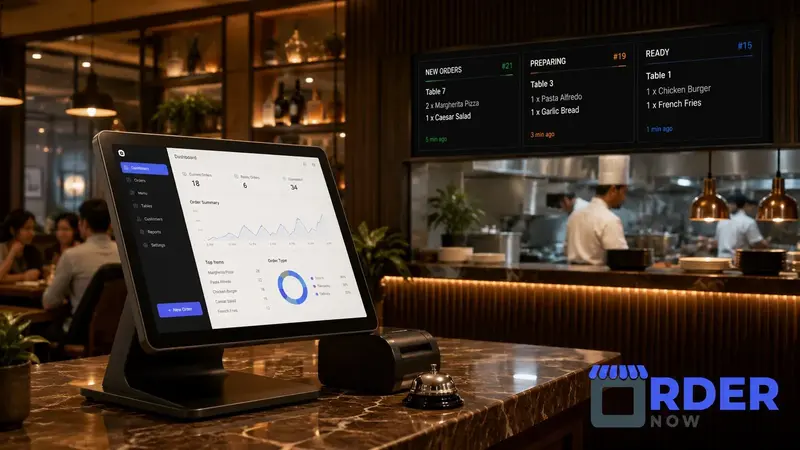
Illustration: a restaurant POS terminal beside kitchen order screens.
7. Turn the checklist into a useful issue log
Consider an illustrative neighborhood restaurant that offers table browsing and direct pickup ordering. The manager chooses a sandwich with a bread selection and an optional extra, then reviews both routes. This is a suggested exercise, not a report of testing at a real customer restaurant.
| Task | Example barrier | Next action |
|---|---|---|
| Read item details with enlarged text | Extra charge disappears behind a button | Provider reviews layout; manager retests |
| Choose an option with a screen reader | Several controls have no useful names | Provider investigates control labels |
| Correct an incomplete order | Message does not identify the missing choice | Review instructions and error behavior |
| Request staff assistance | Alternative menu has an old price | Manager replaces copies and assigns checks |
| Complete pickup handoff | Collection instructions are unclear | Restaurant rewrites the instructions |
For each actual issue, record the date, URL, device, browser, assistive technology if used, reproduction steps, responsible person and retest result. Capture evidence without storing guest payment details or unnecessary personal information.
Prioritize barriers that prevent reading, selecting or completing a task. If a route blocks guests, establish effective assistance and resolve the barrier before expanding its use. Recheck the fix in the original situation.
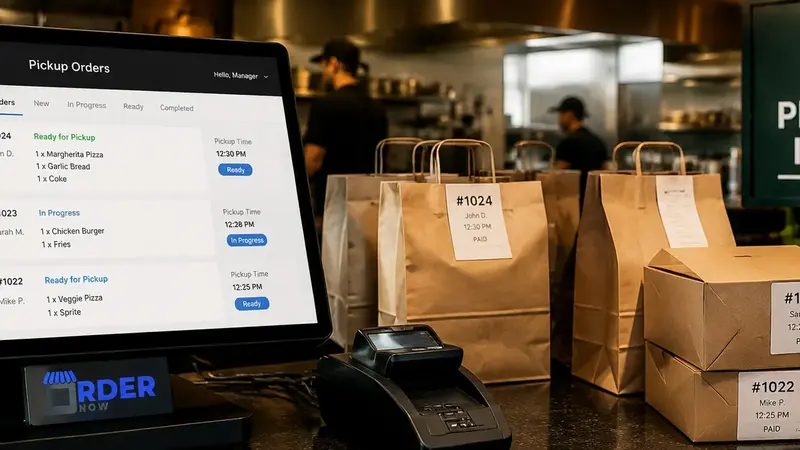
Illustration: a pickup order screen and prepared takeaway bags.
8. Apply the same checks when evaluating OrderNow
As of November 16, 2026, OrderNow's official digital-menu page describes dashboard updates to items, prices, photos, availability and categories. Its FAQ describes a standard guest menu that opens in a mobile browser without an app download. These functions do not establish accessibility conformance.
Use the OrderNow digital QR menu overview to frame a demonstration, then bring your real item descriptions and complicated choices. Ask to test the intended guest template with enlarged text, keyboard navigation and a screen reader. Confirm the selected plan and enabled workflow before relying on an ordering demonstration.
Ask any provider for current accessibility documentation, its scope, known limitations and the process for reporting a barrier. If a conformance report exists, check which version and pages it covers. Documentation should support testing of your configuration.
A useful next step is to request a focused OrderNow demonstration using one menu item and one staff-assistance scenario. Record unanswered accessibility questions alongside the operational questions.
9. Repeat checks when the experience changes
Make review part of menu maintenance. A new promotion, longer description, translated label or checkout change can introduce a barrier after the original launch.
- After content edits, recheck descriptions, prices and alternative copies.
- After template changes, repeat enlargement, navigation and ordering checks.
- After a guest reports a problem, record the affected task and arrange a retest.
- Periodically involve people who use assistive technology and obtain a broader specialist assessment.
Automated tools can help identify some issues, but combine them with task-based review. W3C explicitly cautions that its initial accessibility checks are not exhaustive and that a page can pass them while retaining significant barriers.
The management question is concrete: can a guest understand the menu, communicate choices and receive service through a workable path? Keep improving the digital experience and the staff procedure together.
Explore a connected digital menu with OrderNow.
Try your own menu and service process before choosing the tools your restaurant needs.
Start freeFrequently asked questions
Does a QR code make a restaurant menu accessible?
No. The code provides an entry point. Accessibility also depends on the destination page, readable information, usable controls, assistive-technology support and effective service assistance.
Does keeping printed menus establish ADA compliance?
No. Printed menus may help some guests, but appropriate communication methods depend on the person and situation. Maintain useful alternatives and address digital barriers; this checklist is not a legal compliance determination.
What should we test if the QR menu only displays dishes?
Test access to the link, category navigation, item descriptions, prices, enlarged text, contrast and screen-reader use. Also check how guests request assistance. Ordering checks apply when ordering is enabled.
Can an automated accessibility scan replace manual testing?
No. Combine automated checks with keyboard and screen-reader review, enlarged-text testing and real guest tasks. A broader assessment is needed to evaluate conformance.
Sources and further reading
- US Department of Justice: Guidance on Web Accessibility and the ADA
- US Department of Justice: ADA Requirements—Effective Communication
- W3C: Understanding Contrast (Minimum)
- W3C: Understanding Resize Text
- W3C: Understanding Reflow
- W3C: Understanding Keyboard
- W3C: Understanding Labels or Instructions
- W3C: Easy Checks—A First Review of Web Accessibility
- OrderNow: Digital Menu Software for Restaurants
- OrderNow: Frequently Asked Questions
Sources reviewed November 16, 2026. Prices and product details can change; confirm current terms with the provider.